
Menu ☰
FC AUTOMATION LAB
User Guide
V1.0
This guide explains how to build electrical control and power circuits in FC Automation Lab, create wire connections, run simulations, and manage circuit files. Component and connection behavior is modeled for educational purposes and does not replace the engineering calculations required for real-world system design.
Contents
1 What Is FC Automation Lab?
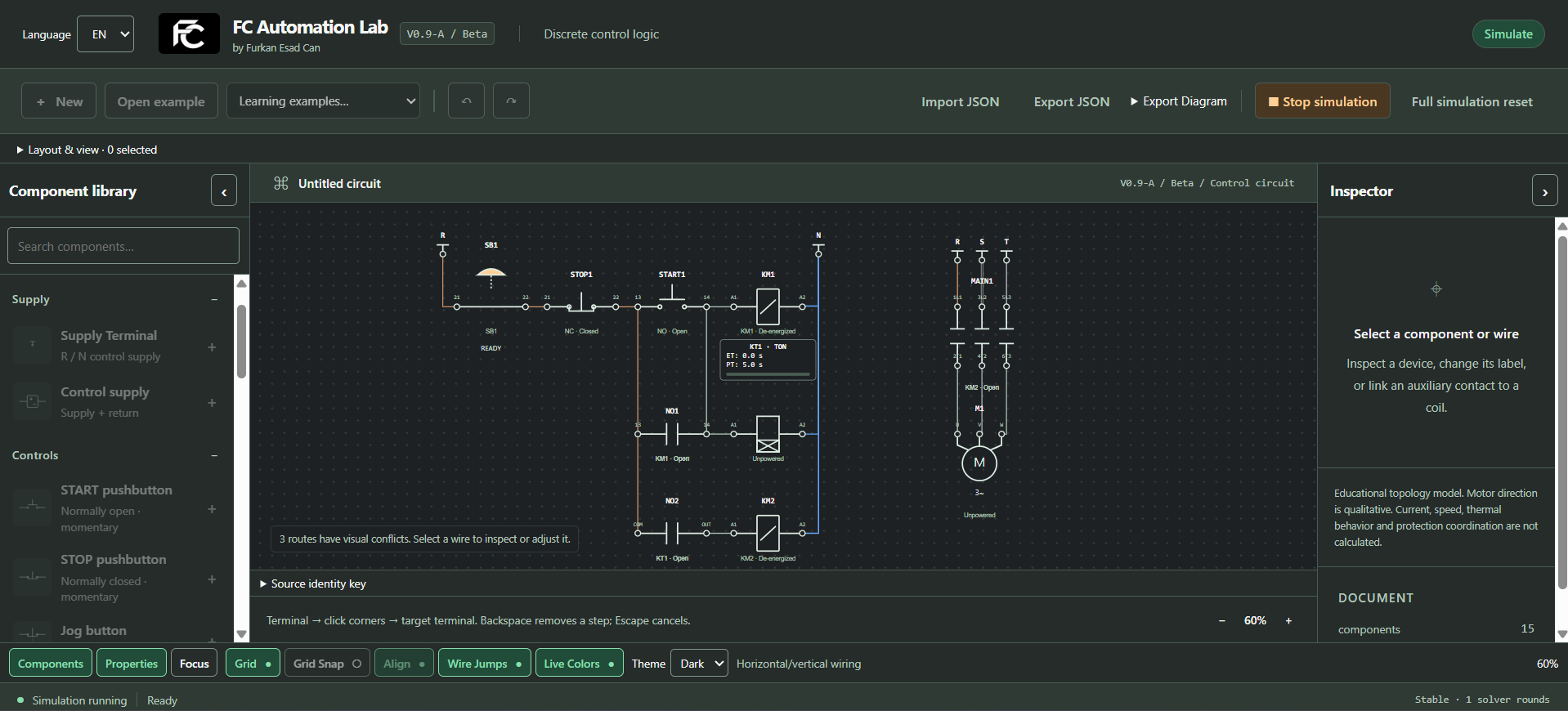
FC Automation Lab is an interactive simulation environment for learning and practicing the operating logic of electrical control and power circuits. Instead of only running prebuilt circuits, users can place the required components in the workspace, connect their terminals, and observe the resulting circuit behavior in the simulation.
The laboratory is based on a free-form circuit-building approach. Circuit behavior is determined by the electrical connections and device relationships created by the user, not by where components appear on the screen or how they are named. Users can therefore build correct circuits as well as incomplete or incorrect ones, then trace the connections to understand why a circuit does or does not operate.
FC Automation Lab is intended for students, instructors, technicians, and anyone learning industrial electrical control and automation. Component placement, wiring, contactor and auxiliary-contact relationships, timer relays, protection components, and motor power circuits can all be studied in the same workspace.
2 Quick Start
If you are using FC Automation Lab for the first time, follow the steps below to build and test a simple circuit.
1. Start a New Workspace
Create an empty workspace using the New option in the top toolbar.
2. Add Supply Terminals
Add two Supply Terminal components from the Component Library. In the Properties panel, set the left supply terminal to R and the right supply terminal to N.
3. Add START pushbutton and contactor coil
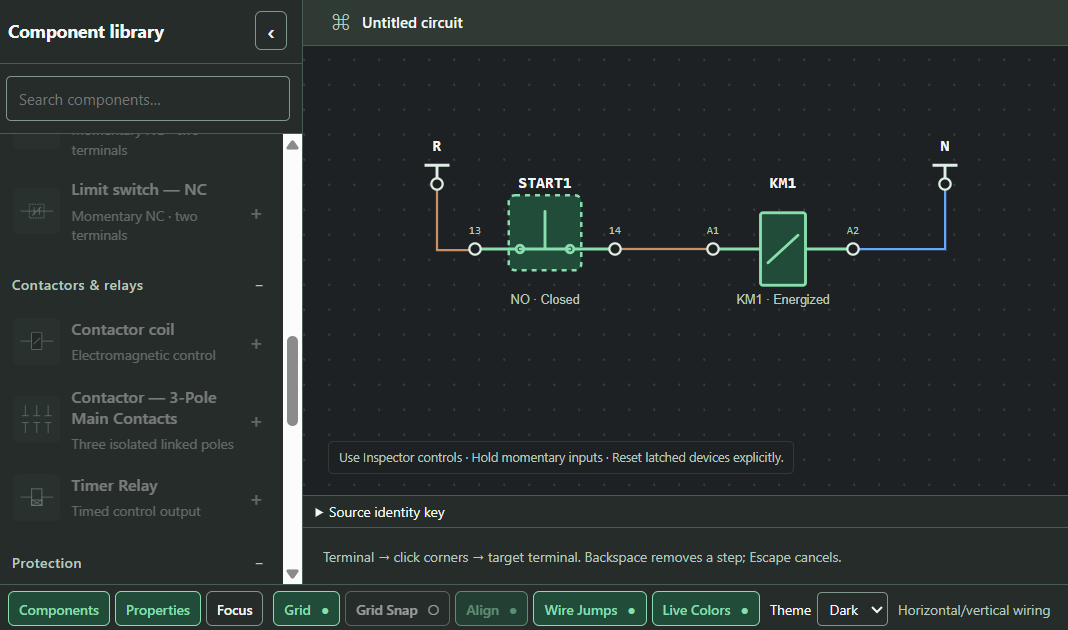
Place a START (NO) pushbutton and a contactor coil between the R and N supply terminals. In this example, the contactor coil is identified as KM1.
Basic sequence of the circuit:
R → START → KM1 → N
4. Create the Connections
Create the following connections between terminals:
R → START input terminal → START output terminal → KM1 A1 → KM1 A2 → N
Click a terminal to begin wiring. Add intermediate bend points if necessary, then click the destination terminal to complete the connection.
5. Run the simulation
After the circuit connections are completed, start the simulation and press and hold the START pushbutton.
When the START pushbutton is pressed, the KM1 contactor coil is energized. When the pushbutton is released, the coil returns to its de-energized state.
6. Save your circuit
Use Export JSON to save the circuit as a .vcl.json file that can be reopened later.
3 Workspace Overview
The FC Automation Lab workspace is divided into areas that support circuit construction and simulation. Components can be added, wired, configured, and simulated on the same screen.
Top Toolbar



The top toolbar contains the main controls for creating a new circuit, opening an example, importing or exporting files, and managing the simulation.
The toolbar provides the following controls:
New: Opens a blank workspace.
Open Example: Loads a prebuilt example circuit into the workspace.
Undo: Undoes the last edit operation.
Redo: Reapplies the last action that was undone.
Import JSON: Opens a previously saved .vcl.json circuit file.
Export JSON: Saves the current circuit as an editable file in .vcl.json format.
Export Drawing: Exports the circuit as a PNG or SVG image.
Start / Stop Simulation: Starts or stops the circuit simulation.
Full Reset: Returns all simulation states to their initial values.
V1.0 adds the following visible editing commands to the top toolbar:
Delete Selection: Removes selected components, wires, or text annotations; the Delete key performs the same action.
Copy: Copies the selected objects to the application clipboard.
Paste: Adds the clipboard objects to the workspace with new IDs and a small positional offset.
Duplicate: Creates a copy of the selection in one step; use Ctrl+D or Cmd+D on macOS.
Add Text: Adds an electrically inert annotation to the circuit.
Mirror Horizontal / Mirror Vertical: Mirrors the symbol and terminal geometry of a supported selected component on the chosen axis without changing its electrical type.
Detailed use of these controls will be explained separately in the relevant sections.
Component Library
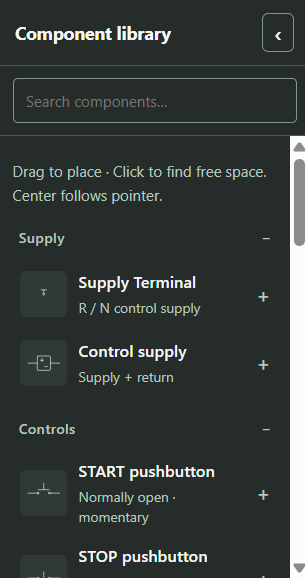
On the left side of the screen is the Component Library.
The components to be used in the circuit are added to the workspace from this section. The Component Library is divided into categories according to their intended use.
The library includes the following categories:
- Supply components
- Control components
- Contactors and relays
- Protection components
- Power and load components
- Connection components
Use the Search Components field at the top of the library to find a component quickly.
The search accepts technical names in both Turkish and English. For example, you can search for a timer relay by entering “timer” or “timer relay.”
Main Work Area
The large central area is the main workspace where circuits are built.
In the workspace, you can:
- Place components
- Move components
- Create wire connections between terminals
- Arrange the circuit layout
- Observe component states during simulation
Component positions determine the visual layout. Electrical behavior is determined by the actual wire connections between component terminals.
Therefore, simply placing a component next to another component does not create an electrical connection.
Properties panel
The Properties panel is located on the right side of the screen.
When a component is selected, its available settings appear in the Properties panel and can be edited there.
Different options may be shown depending on the type of component.
For example:
- Setting a supply terminal to R, S, T, N, +24 V, or 0 V
- Selecting the device associated with an auxiliary contact
- Selecting a timer-relay type and setting its duration
- Selecting a motor model
- Editing a device code or name
These settings can be configured in the Properties panel.
Bottom Status and View Bar
The lower part of the workspace contains controls that help manage the circuit drawing and screen display.
This bar provides the following controls:
- Components: Shows or hides the Component Library.
- Properties: Shows or hides the Properties panel.
- Focus: Expands the workspace by hiding the side panels.
- Grid: Turns the grid view on or off in the workspace.
- Grid Snap: Aligns components to grid points.
- Alignment: Helps position components neatly in relation to other components and terminals.
- Wire Jumps: Controls the wire jump display, which allows visual separation of intersecting wires.
- Live Colors: Shows or hides source/potential identities using wire colors.
- Theme: Switches between light and dark theme.
In the same section, information about the zoom ratio of the workspace and the simulation status can also be displayed.
Simulation Status
Brief information about the current state of the simulation is shown at the bottom of the screen.
Use this area to check whether the simulation is editing, running, or in a fault state, and to review any available error information.
4 Customizing the Workspace
FC Automation Lab lets you adjust the workspace appearance and layout when working with circuits of different sizes. These options improve usability without changing the electrical connections.
1. Showing and Hiding the Component Library
Use the Components option in the bottom status bar to show or hide the Component Library.
After adding the required components, you can close this panel to enlarge the workspace and reopen it later with the same control.
2. Showing and Hiding the Properties panel
The Properties option in the bottom status bar controls the visibility of the Properties panel on the right.
After configuring the components, you can close the Properties panel to create more room for the circuit diagram.
Hiding the panel does not delete the selected component or change the connections in the circuit.
3. Focus Mode
The Focus option expands the main workspace by hiding the Component Library and Properties panel together.
This mode can be used to obtain more screen space, especially when arranging large control and power circuits.
When exiting Focus Mode, the workspace returns to the normal panel layout.
4. Grid Appearance
The Grid option shows or hides the reference grid in the workspace.
The Grid provides a visual reference for orderly component placement and improves diagram readability. Showing or hiding it does not affect circuit behavior.
5. Grid Snap
When the Grid Snap feature is active, grid points in the workspace are taken as reference when placing and moving components.
This feature makes it easier to create more orderly horizontal and vertical layouts, especially in circuits containing a large number of components.
If a freer layout is desired, the feature can be temporarily turned off.
6. Alignment

Alignment commands act on the current multi-selection. They do not create an automatic circuit layout or change electrical connections.
Align Left, Right, Top, and Bottom place the corresponding outer edges of the selected objects on the same line.
Align Vertical Centers places the horizontal centers on the same X axis; Align Horizontal Centers places the vertical centers on the same Y axis.
Align Terminals Vertically or Horizontally places compatible connection terminals on the same vertical or horizontal connection axis.
Distribute Horizontally / Vertically: Spaces three or more selected objects evenly in the chosen direction.
7. Wire Jump Display
The Wire Jumps option makes it easier to visually distinguish wires that are not electrically connected to each other but intersect on the drawing.
The bridge view used on intersecting wires only improves the readability of the drawing.
Just because one wire passes over another wire does not mean that the two connections are electrically connected.
8. Live Colors
The Live Colors option allows the source and potential identities resolved in the circuit to be displayed in different colors on the wires during simulation.
This feature makes it easy to visually follow which part of the circuit is associated with which supply source.
Live Colors will be explained in detail in the following sections.
9. Light and Dark Theme
Use Theme to switch the FC Automation Lab interface between light and dark appearances.
Changing the theme affects only the user interface. Circuit components, connections, and simulation behavior remain unchanged.
Users can choose the desired theme according to the working environment and screen conditions.
10. Zoom
The zoom ratio of the workspace can be changed using the zoom controls at the bottom of the screen.
Zooming can be used to examine an overview of large circuits or to study a specific section in more detail.
Zooming only changes the viewing scale of the workspace; it does not change the actual positions and connections of the components in the circuit.
5 Adding and Positioning Components
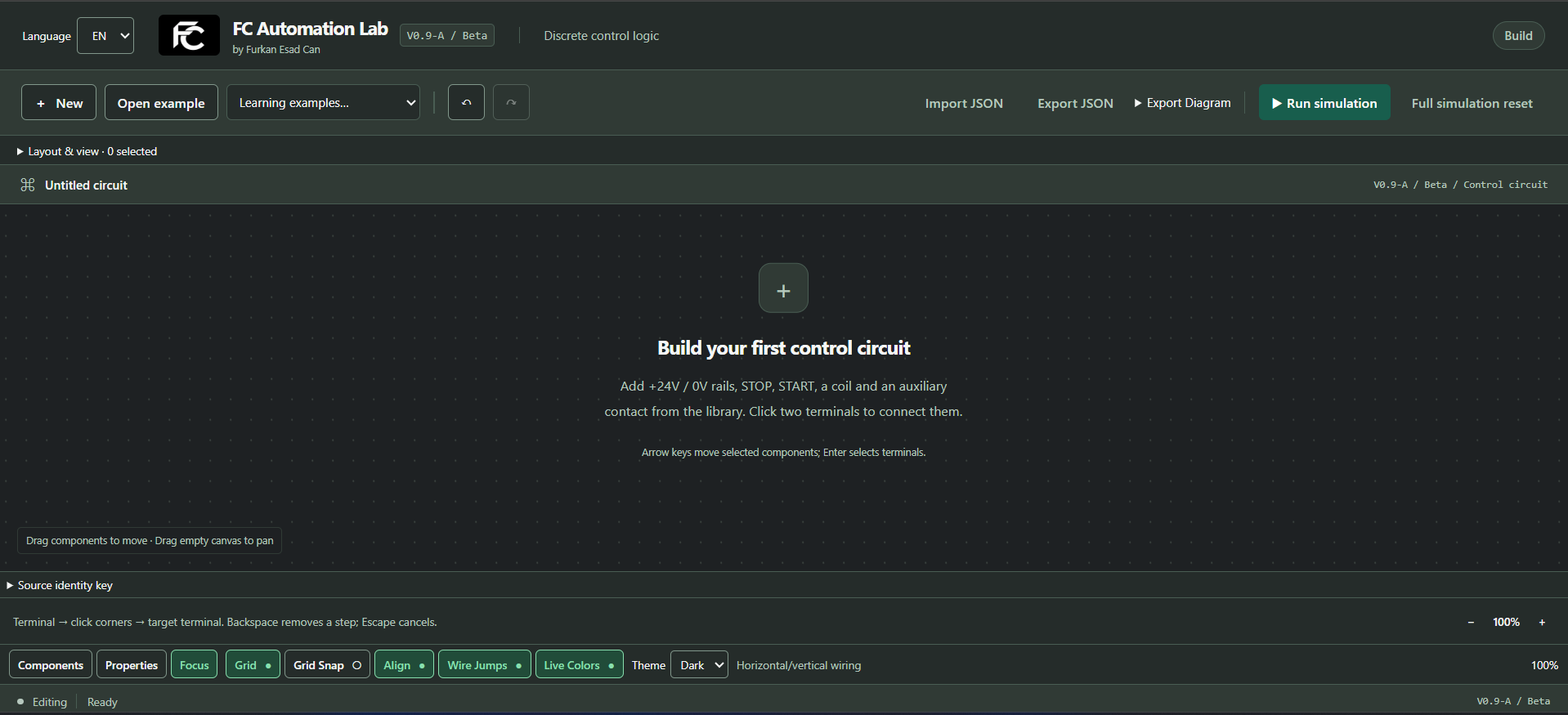
To create a circuit in FC Automation Lab, select the required components from the Component Library, add them to the workspace, and arrange them in a clear layout.
1. Selecting Components from the Component Library
The components included in the Component Library are divided into categories according to their intended use.
Browse the relevant category or use the Search Components field to find the required component quickly.
Examples include:
- Contactor coil
- START or STOP pushbutton
- Timer relay
- Overload relay
- Motor
- Supply terminal
Select a component in the library to add it to the workspace.
2. Adding Components by Clicking
You can start adding components by clicking on a component in the Component Library.
The selected component is added to the workspace and can then be moved to the desired location.
This method is useful when the component’s exact position does not need to be determined immediately.
3. Adding Components by Drag and Drop
You can also drag a component directly from the library to the required position in the workspace.
The component is placed where it is released, allowing you to plan the circuit layout as components are added.
The drag-and-drop method is especially useful for quickly creating approximate layouts of components in large circuits.
4. Moving Components and Groups
A single component or a multi-selection group can be moved to another position at any time.
To move a group, drag the body of any selected object. Every selected object moves by the same delta, preserving the spacing within the group.
Moving a component:
- Does not change its device ID
- Does not remove existing device relationships
- Does not associate linked auxiliary contacts with another device
When moving connected components, the wire geometry is updated according to the new location in the workspace.
A group move is recorded as one edit and can be reversed with a single Undo.
With Grid Snap enabled, the group uses one shared movement delta; individual objects are not snapped separately in a way that distorts the layout.
5. Selection and Multi-Selection
Click an object to select it. To select more than one object, hold Ctrl, Shift, or Cmd on macOS while clicking additional objects.
Selected objects are visually indicated. A multi-selection may include components, wires, and text annotations together.
Click an empty area to clear the selection. Move, delete, copy, and duplicate operations apply to the entire multi-selection.
For a multi-selection, the Properties panel shows a safe summary. Select a single component to edit settings that are specific to that component.
Depending on the component type, you can edit:
- Device code
- User-defined name
- Supply type
- Associated device
- Time setting
- Motor model
These properties can be edited in the Properties panel.
6. Copy, Paste, and Duplicate
Copy / Paste: Copy selected objects to the application clipboard and add them again with Ctrl+C / Ctrl+V, or Cmd+C / Cmd+V on macOS.
Duplicate: Use Ctrl+D, or Cmd+D on macOS, to create a copy of the selection in one step.
Copy rule: An internal wire is copied only when both of its endpoints are part of the selection. Wires leading to objects outside the selection are not copied.
Safe IDs: Pasted components receive new valid IDs and a small positional offset. Linked device relationships are safely remapped when they remain within the selection; if the operation cannot complete as a whole, it does not partially change the circuit.
7. Horizontal and Vertical Mirroring
Mirror Horizontal / Mirror Vertical: Mirrors the symbol, terminals, and hit geometry of a supported selected component on the chosen axis.
Electrical behavior: Mirroring does not change the component type or device relationship. Connected wires adapt to the new terminal positions, and the result is preserved in saved files and exports.
8. Text Annotation
Add Text: Adds an explanation, title, or training note to the workspace. A text annotation has no terminals and does not participate in the electrical simulation.
Editing: Select the annotation, then use the Properties panel to change its text, font size, and Bold setting.
Standard editing: Text annotations can be selected, moved, included in a multi-selection, copied, duplicated, deleted, and managed with Undo / Redo.
User text: Entered text is preserved in JSON saves and PNG/SVG exports. It is not automatically translated when the interface language changes.
9. Positioning Components Neatly
For a readable circuit diagram, arrange components in clear horizontal and vertical rows.
Grid Snap and Alignment make this easier.
When the Alignment feature is active, auxiliary alignment indicators can be displayed according to the terminals and positions of other components while moving the component.
These features are particularly useful for:
- Horizontal connections in control circuits,
- Vertical phase paths in power circuits,
- Contactor and motor connections
This produces a cleaner, more orderly layout.
10. Deleting Components
Select objects that are no longer required and choose Delete Selection on the top toolbar, or press the Delete key. A multi-selection is removed as one operation.
Before deleting a component, check its:
- Wire connections
- Relationships with other devices
- Auxiliary-contact associations
Deleting a connected component may affect the operating logic of the circuit.
11. Difference Between Layout and Electrical Connections
Component positions in the workspace determine the visual layout of the circuit.
However, placing two components side by side or in the same direction does not create an electrical connection between them.
An electrical connection exists only when a wire is created between terminals.
6 Creating Wire Connections
In FC Automation Lab, components are connected by drawing wires between their terminals. Click a terminal to begin, route the wire as required, and add intermediate bend points when necessary.
1. Starting the Connection
To create a wire connection, first click on the terminal where the connection will begin.
Once the terminal is selected, the wiring process begins and a preview of the connection is shown as the cursor moves.
2. Creating Intermediate Bend Points
If you do not want the connection to go directly to the target terminal, you can create intermediate bend points by clicking on the desired points in the workspace.
Each click adds a new direction point to the wire route.
Intermediate bend points allow you to:
- Route wires around components
- Create orderly horizontal and vertical paths
- Improve the readability of complex circuits
3. Completing the Connection
Click on the target terminal to complete the wire.
Once the target terminal is selected, the connection is completed and the wire is added to the electrical topology of the circuit.
The connection must not only appear on the screen, but must be completed between the correct terminals.
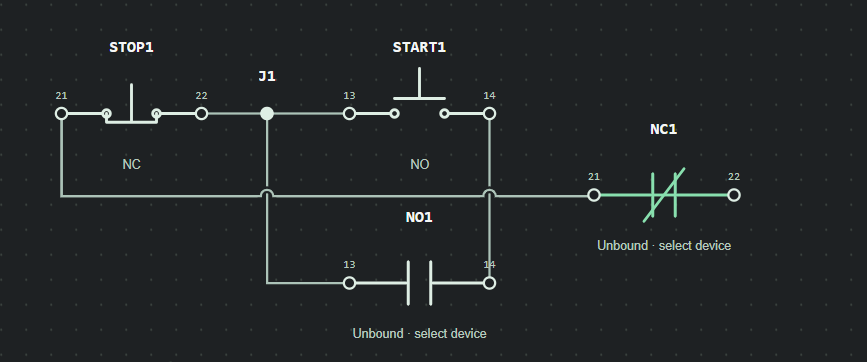
4. Terminal and Junction Use
A junction can be used when more than one connection needs to come together at the same electrical point.
A junction allows multiple wires to share the same electrical point.
This is different from just visually intersecting the lines.
5. Wire Crossings and Wire Jump Display
The Wire Jumps view is available when two unconnected wires intersect on the sketch.
This view, also called Wire Jump, makes it easier to distinguish points where wires intersect but do not electrically merge.
The Wire Jumps notation affects visual readability only; it does not change the electrical connection structure of the circuit.
6. Editing the Wire Route
Intermediate corners or segments of a created wire can then be edited.
When changing the connection route, the start and end terminals of the wire are preserved; only the visual route of the drawing is changed.
This is useful when components are moved or when the circuit diagram needs a cleaner layout.
7. Connections When a Component Is Moved
When a connected component is moved in the workspace, the wires attached to it adapt to the new terminal location.
This process does not change the electrical connection of the wire.
However, after major layout changes, a visual check of wire routes is recommended.
8. Canceling a Connection
Backspace: Removes the last intermediate waypoint and continues the wire draft from the previous point. If there is no waypoint, the starting terminal remains active.
Esc: Cancels the active wire draft completely; no partial wire or new electrical connection is created.
9. Checking Connections
After wiring is complete, check the:
- Starting terminal
- Destination terminal
- Junction points, if any
- Wire crossings
If the circuit does not operate, check the terminal connections first.
7 Contactors and Linked Contacts
In FC Automation Lab, a contactor coil and its auxiliary and main contacts can be associated with the same device. When the contactor coil is energized or de-energized, the associated contacts change state automatically.
1. Contactor Coil
When a contactor coil is added to the workspace, assign it a device code.
For example:
KM1
This code represents the identity of the contactor used in the circuit.
When the A1 and A2 terminals are correctly supplied, the contactor coil is energized. When the supply is removed, the coil returns to its de-energized state.
2. Connecting Auxiliary Contacts to the Contactor
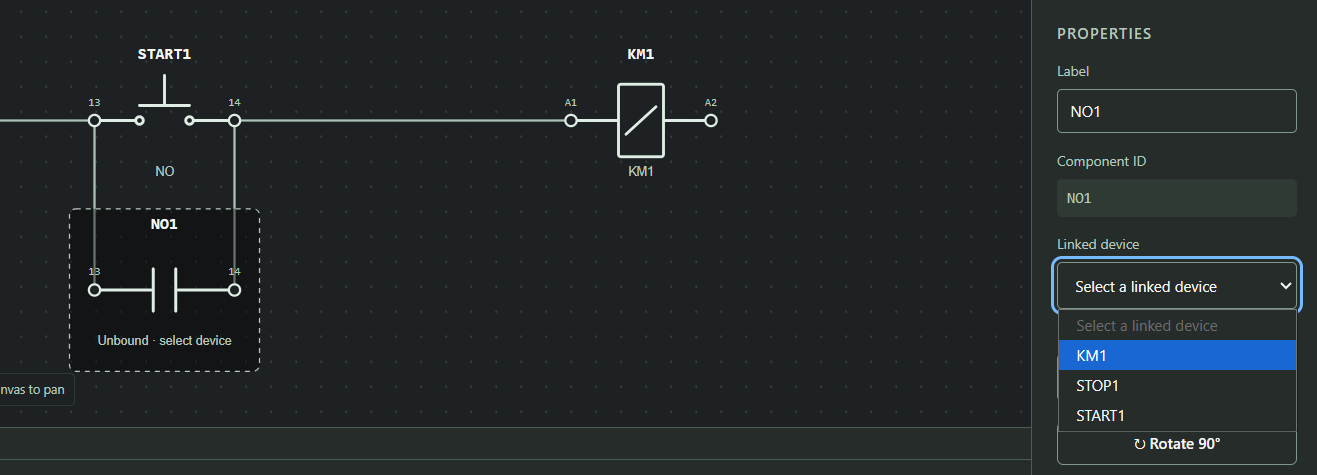
Use the Properties panel to associate an NO or NC auxiliary contact with the required contactor.
For example, an auxiliary contact associated with KM1 follows the state of the KM1 contactor.
When KM1 is de-energized:
- The NO contact is open
- The NC contact is closed
When the KM1 coil is energized:
- The NO contact closes
- The NC contact opens
This change occurs automatically during the simulation.
3. Importance of the Device Code
Placing an auxiliary contact next to a contactor does not associate the two devices.
Create the relationship by selecting the appropriate contactor in the auxiliary contact’s Properties panel.
For example, if there are two contactors in the workspace, KM1 and KM2, it must be clearly selected which contactor the auxiliary contact will follow.
4. Use of NO and NC Auxiliary Contacts
Auxiliary contacts associated with contactors can perform several functions in control circuits.
NO auxiliary contacts are commonly used for:
- Seal-in circuits
- Status indication
- Enabling another circuit
NC auxiliary contacts are commonly used for:
- Electrical interlocking
- Preventing the opposing contactor from operating
- Interrupting a control-circuit path
These behaviors are not created with a ready-made circuit rule. How the contacts will be used in the circuit depends entirely on the connections made by the user.
5. Three-Pole Main Contact Group
A three-pole main contact group used in a power circuit can be associated with the corresponding contactor.
When the contactor coil is energized, all three main contacts change state together, opening or closing the phase paths in the power circuit.
Thanks to this structure, the contactor coil in the control circuit and the motor connections in the power circuit can be associated through the same device.
For example, when the KM1 contactor coil is energized, the three-pole main contact group associated with KM1 follows the same contactor state.
6. Connecting Multiple Contacts to the Same Contactor
More than one auxiliary contact can be connected to one contactor.
For example, KM1 may have:
One NO seal-in contact
- One NC interlocking contact
- Another NO contact for status indication
All of these contacts follow the state of the same contactor but may perform different electrical tasks in the circuit.
7. Control During Simulation
After completing the circuit, start the simulation and observe the contactor coil state.
When the contactor is energized, the associated NO and NC auxiliary contacts and three-pole main contact group change state.
If a contact does not behave as expected, check:
- Whether the contact is associated with the correct device
- Whether the contactor coil is energized
- Whether the terminal connections are correct
8 Pushbuttons and Control Devices
Pushbuttons and mechanical control devices with different operating behaviors can be used to build control circuits in FC Automation Lab. During simulation, these components can be operated directly in the workspace.
1. START Button
The START pushbutton is a momentary control component that operates normally open (NO).
When the button is pressed, the contact closes and the electrical path it is connected to becomes conductive. When the button is released, the contact returns to its normal position and opens.
The START pushbutton is commonly used for:
- Energizing contactor coils
- Issuing a run command
- Starting a seal-in circuit
2. STOP Button
The STOP pushbutton is a momentary control component that operates normally closed (NC).
In the normal state, the contact is closed, allowing the electrical path to continue. When the button is pressed, the contact opens and the relevant control path is interrupted.
When the button is released, the contact returns to its normal closed state.
The STOP pushbutton is generally used to de-energize an operating contactor or interrupt a control circuit.
3. JOG Button
JOG is a momentary control component that has both NC and NO contacts on a single mechanical operator.
The component has four independent terminals. When the button is pressed, the states of the NO and NC contacts change simultaneously:
- NO contact closes,
- NC contact opens.
When the button is released, both contacts return to their normal position.
This structure allows the creation of jog control applications, such as running a motor only for the time the button is pressed.
4. Maintained Pushbutton
Unlike a momentary pushbutton, a maintained pushbutton retains its state after the user changes it.
Once actuated, it remains in its new position until the user changes it again.
Maintained controls are useful when a command must remain active without the pushbutton being held down.
Unlike momentary START, STOP, or JOG pushbuttons, a maintained pushbutton does not need to be held down.
5. Emergency Stop
The Emergency Stop component can represent an emergency stop condition in the control circuit.
Once actuated, it remains in that state until the user resets it.
For the Emergency Stop component to affect the circuit, the user must wire it into the appropriate control-circuit path.
6. Limit Switches
Two separate limit switches can be used in FC Automation Lab: NO Limit and NC Limit.
Limit switches can be used to represent the mechanical control behavior that occurs when a moving system reaches a certain position.
NO Limit: Open in its normal state; the contact closes when actuated.
NC Limit: Closed in its normal state; the contact opens when actuated.
Limit switches can be used for:
- Forward-reverse motor control
- Travel limitation
- Changing circuit state when a specified position is reached
7. Using Control Components in Simulation
While the simulation is running, control components can be used via their symbols in the workspace.
Momentary control components remain active only while they are operated. Maintained controls retain their new state until the user changes it again.
If a control component does not produce the expected result, check:
- Its terminal connections
- Whether the correct NO or NC contact type is used
- Whether it is connected to the correct point in the control circuit
- The connections of any controlled contactors or other devices
9 Overload Relay and Fuse Use
In FC Automation Lab, protection components are used to model interruption and protection scenarios that may occur in control and power circuits for educational purposes. Overload relay and fuse components behave according to connection and state changes in the circuit rather than actual current or thermal calculations.
1. Overload Relay
An overload relay is a protection component placed in the motor power circuit that can affect the control circuit through its auxiliary contacts.
In FC Automation Lab, an overload relay includes:
- A three-phase conducting path in the power circuit
- A 95–96 NC auxiliary contact
- A 97–98 NO auxiliary contact
In the normal state:
- The 95–96 NC contact is closed
- The 97–98 NO contact is open
When the overload relay is tested or tripped:
- The 95–96 NC contact opens
- The 97–98 NO contact closes
2. Effect of the Overload Relay on the Control Circuit
Testing the overload relay does not automatically cause the contactor to drop out unless the 95–96 NC auxiliary contact is actually wired into the control circuit.
To de-energize the contactor coil, the 95–96 NC auxiliary contact must be wired into its control-circuit path.
For example, if the 95–96 contact is connected in series to the supply path of the contactor coil, when the overload relay test is performed, this contact opens and the coil is de-energized.
3. Testing and Resetting the Overload Relay
A protection condition can be created by testing the overload relay component during the simulation.
After the test, the component remains in the protection state and the auxiliary contacts behave accordingly.
When Reset is selected, the overload relay returns to its normal state.
After this process:
- The 95–96 NC contact closes again
- The 97–98 NO contact opens again
4. Single Fuse
A single fuse can represent protection for one electrical path, particularly in a control circuit.
In its normal, healthy state, the fuse conducts.
When Test is selected, the fuse opens and interrupts the electrical path.
Select Reset to return the fuse to its healthy, conducting state.
A single fuse can be used :
- In the control supply,
- In auxiliary circuits,
- On a single protected line
5. Three-Pole Fuse Group
A three-pole fuse group can represent protection for the R, S, and T lines in a three-phase power circuit.
The component contains three independent phase paths.
In the normal state, all three phase paths conduct. When one fuse path is tested, that path opens and interrupts the corresponding phase connection.
This structure allows phase paths to be monitored separately in three-phase motor and power circuits.
6. Fuse Test and Reset Behavior
The fuse Test function simulates a protection component opening for training purposes.
Reset returns the component to its conducting state.
The simulation does not calculate:
- Actual short-circuit current
- Fuse operating time
- I²t value
- Fuse characteristic
- Physical melting behavior
The purpose is to observe which electrical paths will be interrupted in the circuit if a protection component opens.
7. Points to Check When Using Protection Components
If a circuit does not behave as expected, check:
- Whether the overload relay is in the test or tripped state
- Whether any fuse path is open
- Whether the overload-relay auxiliary contacts are wired into the control circuit
- Whether all phase paths in the power circuit are complete
10 Timer Relays
TON and TOF timer relays can be used to build time-controlled circuits in FC Automation Lab. After adding a timer relay to the workspace, select its type and time setting in the Properties panel.
1. Adding a Time Relay
Add a Timer component from the Component Library to the workspace.
When the timer relay is selected, the Properties panel provides the following settings:
- Device code
- Timer-relay type
- Preset time
These properties can be edited in the Properties panel.
For example, the timer relay can be assigned the device code:
KT1
As with contactors, timer-relay auxiliary contacts can be associated with KT1 or another timer relay by selecting the relevant device ID.
2. PT and ET Values
A timer relay displays two time values:
PT (Preset Time): The target time set by the user.
ET (Elapsed Time): The elapsed simulation time.
While the timer relay is operating, ET increases and the progress indicator on the relay shows the timing status directly in the workspace.
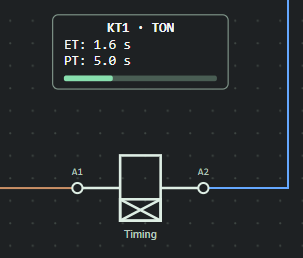
For example, if PT is set to 5 s, the timer relay’s target time is 5 seconds.
3. TON - On-Delay
For a TON (On-Delay) timer relay, timing begins when the relay is energized.
After the relay is energized, ET increases. When ET reaches PT, the contacts associated with the timer relay change state.
For example:
PT = 5 s
A TON relay with PT set to 5 s begins timing when it is energized. After 5 seconds, its associated contacts change state.
If the TON relay is de-energized before PT is reached, timing stops and ET is not retained. Timing restarts the next time the relay is energized.
This behavior can be used in delayed-start applications.
4. TOF - Off-Delay
A TOF (Off-Delay) timer relay maintains its switched contact state for a specified period after the control signal is removed.
In FC Automation Lab, the A1–A2 supply and B1 control input of a TOF timer relay are evaluated separately.
The timer relay must be supplied through A1–A2. TOF timing is controlled by the state of B1.
When the B1 control signal is removed, ET begins to increase. When ET reaches PT, the associated contacts return to their normal state.
This behavior can be used in delayed-stop applications or where operation must continue briefly after the control signal is removed.
5. Associating a Contact with a Timer Relay
For a timer relay to affect the circuit, its NO or NC auxiliary contacts must be associated with the timer relay and wired into the circuit.
For example, a contact assigned to KT1 in the Properties panel follows the state of timer relay KT1.
Placing a contact next to a timer relay does not by itself create a relationship.
6. Tracking Time During Simulation
The timing status of the timer relay can be monitored directly on the component in the workspace.
During simulation:
- PT is the preset time
- ET is the elapsed time
- The progress indicator shows how much of the timing period has elapsed
This information makes it easy to monitor the current status of the timer relay without turning on the Properties panel.
7. When the Browser Tab Is Not Visible
Simulation time in FC Automation Lab advances only while the browser tab containing the application is visible.
Simulation time pauses when you switch to another tab or the application tab is otherwise not visible.
Timing resumes from the same point when you return to the application tab.
8. If the Timer Relay Does Not Work
If a timer relay does not operate as expected, check:
- The A1–A2 supply connections
- The B1 control connection when using TOF
- The PT value
- Whether each NO or NC contact is associated with the correct KT device
- Whether the simulation is running
11 Motors and Power Circuits
In FC Automation Lab, motor operation is determined by the actual phase connections in the power circuit, not only by contactor state in the control circuit. The user-created power circuit determines whether the motor operates, its rotation direction, and its connection type.
1. Motor Component
Add a Motor component from the Component Library to the workspace.
Select the motor to choose a supported motor model in the Properties panel.
FC Automation Lab provides these three-phase motor models:
- Three-terminal motor
- Six-terminal motor
2. Three-Terminal Motor
The three-terminal motor is designed for use in basic three-phase motor applications.
The U, V and W terminals of the motor are connected to the three phase lines in the power circuit.
In order for the motor to operate, the necessary phase connections must be made correctly in the power circuit.
Just because a contactor is energized does not mean that the motor will automatically start. The power connections between the contactor main contacts and the motor must also be completed.
3. Motor Rotation Direction
The direction of rotation of a three-phase motor is evaluated according to the sequence of phases reaching the motor terminals.
Changing the phase sequence may cause the direction of the motor to change.
In this way, the direction change in forward-reverse motor circuits occurs not with a ready-made "forward" or "reverse" command, but through real power connections created by the user.
During the simulation, the determined rotation direction of the motor can be seen on the motor symbol in the workspace.
4. Three-Pole Contactor Main Contacts
A three-pole main contact group can switch all three phases together in a motor power circuit.
This contact group is connected to the corresponding contactor coil.
When the contactor coil is energized, all three main contacts change state together, connecting or interrupting the phase paths to the motor.
This associates the contactor coil in the control circuit with the three-phase switching device in the power circuit through the same device ID.
5. Six-Terminal Motor
The six-terminal motor model can be used for applications where the motor winding ends can be connected separately.
The motor has six terminals:
- U1–U2
- V1–V2
- W1–W2
These terminals represent the three separate windings of the motor.
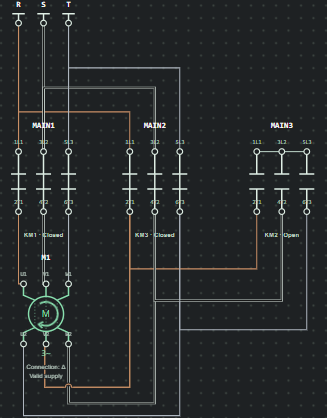
Thanks to the six-terminal structure, the star and delta connections of the motor can be created by the user using the actual wiring.
6. Star Connection
In a star connection, one end of each motor winding is joined at a common star point.
FC Automation Lab does not create a star connection through a predefined Star Mode.
Whether the motor is in star condition is determined by the actual connections the user creates between terminals U1/U2, V1/V2 and W1/W2.
7. Delta Connection
In delta connection, the motor windings are connected to each other via appropriate terminals, creating a closed delta connection structure.
As with the star connection, the delta connection is evaluated not by a ready-made selection, but by the actual wiring to the motor terminals.
When an incorrect or incomplete connection is made, the system does not accept it as a correct delta connection.
8. Automatic Star-Delta Circuits
A six-terminal motor can be used in an automatic star-delta starter circuit built with contactors, auxiliary contacts, and timer relays.
These circuits typically use a:
- Main contactor
- Star contactor
- Delta contactor
- Timer relay
The user creates the required control and power connections between these devices.
FC Automation Lab does not provide a predefined star-delta starter function. Switching behavior is produced by the contactor and timer-relay circuit built by the user.
This arrangement produces the star → transition gap → delta sequence through the circuit’s operating logic.
9. Checking Power Circuits
If the motor does not operate as expected, check:
- The R, S, and T phase connections
- Whether each contactor main contact group is associated with the correct device
- Whether the motor terminals are connected correctly
- The state of any overload relays and fuses
- Whether the star or delta connection is complete on a six-terminal motor
If the motor rotates in the opposite direction from that expected, check the phase sequence in the power circuit.
10. Scope of the Model
FC Automation Lab evaluates connection topology in motor and power circuits and operating conditions for educational purposes.
The model does not calculate:
- Actual motor current
- Actual voltage magnitude
- Motor power
- Motor torque
- Motor speed
- Starting current
- Mechanical load
- Thermal behavior
12 Live Colors
Live Colors allow you to follow the source/potential identities resolved in the circuit by observing wire colors during simulation.
This makes it easier to distinguish which circuit connections are associated with each supply source.
1. Turning Live Colors On and Off
Use the Live Colors option in the bottom status bar to enable or disable this view.
When Live Colors are disabled, wires use the standard display.
When Live Colors are enabled, wires are colored according to the source/potential identity determined by the simulation.
Live Colors is a visual aid only and does not alter the electrical connections of the circuit.
2. Phase and Potential Colors
The basic color mappings used in the FC Automation Lab are as follows:
- R: Brown
- S: Black
- T: Gray
- N: Blue
- +24 V: Amber / Orange
- 0 V: Purple
- Floating / Undefined: Default wire color
- Electrical Conflict / Fault: Red
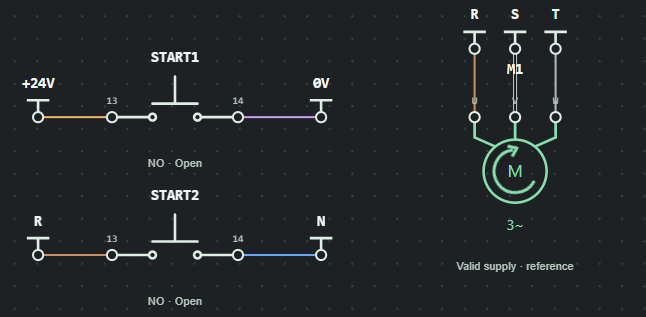
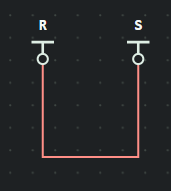
These colors indicate the source/potential identity associated with each connection.
3. Color Behavior of Open Contacts
An open contact does not electrically connect the paths on its two sides.
The two sides of an open contact may therefore have different source/potential identities and appear in different colors when Live Colors are enabled.
When the contact closes, an electrical connection is established and the connection topology is re-evaluated.
4. Loads and Source Identity
The presence of a motor or another load does not automatically transfer a source/potential identity through that component.
FC Automation Lab determines source/potential identities from the actual connection topology.
Therefore, merely being visually on both sides of the same component does not mean that the two connections have the same potential.
5. Star Point
The star point created on six-terminal motors simply represents the joining of the winding leads to a common connection point.
This point is not automatically considered N and is not shown in blue because only a star connection is created.
The electrical identity of the star point is determined by the actual connections created in the circuit.
6. Electrical Conflicts
If incompatible source/potential identities are detected on the same electrical connection during simulation, the system may indicate a conflict or fault.
Affected connections may be shown in red.
The red color does not mean that the actual short circuit current or current magnitude has been calculated in the circuit.
The purpose is to visually notify the user that an electrically incompatible connection has been created.
7. What Live Colors Do Not Indicate
Live Colors do not:
- Show actual current flow or direction
- Measure current through a wire
- Calculate voltage magnitude
- Show current magnitude
- Show power consumption
- Replace a physical measuring instrument
8. Intended Use
Live Colors can help you:
- Trace phase paths in three-phase power circuits
- Distinguish supply paths in control circuits
- Compare the source/potential identities on both sides of open contacts
- Find incorrect or conflicting connections more quickly
13 Running the Simulation
After building a circuit in FC Automation Lab, start the simulation to observe component states. The simulation can be started, stopped, or returned to its initial state with Full Reset.
1. Starting the Simulation
After creating your circuit and completing the necessary connections, you can start the simulation using the Start Simulation command.
When the simulation starts, FC Automation Lab evaluates the existing connections in the circuit and determines the operating states of the components according to the created electrical topology.
During simulation, you can observe:
- Contactor coils
- Auxiliary contacts
- Timer relays
- Motors
- Overload-relay and fuse states
- Live Colors
2. Using Control Components During Simulation
START, STOP, JOG, limit switches and other control components can be used directly from the workspace while the simulation is running.
When the state of a control component changes, the circuit is re-evaluated and the states of the components connected to it are updated.
For example:
- A contactor coil can be energized when the START pushbutton is pressed,
- The control path can be interrupted when the STOP pushbutton is pressed,
- When a limit switch is activated, the state of the relevant circuit branch may change.
The result of the circuit depends entirely on the connections created by the user.
3. Stopping the Simulation
The STOP command is used to stop the simulation.
When the simulation is stopped, the circuit structure in the workspace is preserved and the user can continue editing the circuit.
Stopping the simulation:
- Does not delete components
- Does not change wire connections
- Does not reset the circuit document
When the simulation is put back into RUN state, the circuit is re-evaluated based on its current operating state.
4. Fully Resetting the Simulation
The Full Reset command is used to return the operating state of the circuit to its initial state.
Full Reset clears temporary states created during simulation.
After Full Reset, the following return to their initial states:
- Timer-relay states
- Active control-component states
- Temporary simulation data
The circuit drawing, components and wire connections are preserved.
5. Tracking Simulation Status
The bottom status area displays the current simulation state.
It indicates whether the simulation is in one of the following states:
- Editing
- Running
- Fault
When an error or electrical conflict occurs during the simulation, the relevant situation can be visually notified to the user.
6. Error Status
If an incompatible electrical connection is detected in the circuit, the system may enter an error state.
If this occurs, check:
- Supply connections
- Phase paths
- Open and closed contacts
- Junction points
- Contactor and linked-contact relationships
When Live Colors are enabled, some electrical conflicts may also appear as red connections.
7. When the Browser Tab Is Not Visible
Simulation time in FC Automation Lab advances only while the browser tab containing the application is visible.
Time-based simulation behavior pauses when you switch to another tab.
Simulation resumes from the same point when you return to the application tab.
This behavior specifically prevents timers from completing time without the user seeing the screen.
8. If the Simulation Doesn't Work
If the circuit is not working as expected, check the following points:
- Is the simulation in RUN state?
- Are the supply terminals selected correctly?
- Have the necessary wire connections been made between the terminals?
- Are NO and NC contact types used correctly?
- Are the auxiliary contacts associated with the correct device?
- Is an overload relay or fuse in the test state?
- Are the necessary phase paths completed in the power circuit?
- If a timer relay is used, are the PT and control connections correct?
14 Saving and Opening Circuits
Circuits created in FC Automation Lab can be saved in .vcl.json format and reopened later.
A .vcl.json file is not merely an image; it is an editable circuit document containing the components, connections, properties, and circuit structure.
1. Saving the Circuit
Use the Export JSON option on the top toolbar to save the circuit you prepared.
The circuit is saved to your computer with the .vcl.json extension.
Example filename:
start-stop-seal-in.vcl.json
The saved file can be reopened later in FC Automation Lab.
2. Contents of JSON File
The file in .vcl.json format stores the editable structure of the circuit.
A .vcl.json file may contain:
- Components in the workspace
- Component positions
- Terminal connections
- Wire routes
- Device IDs
- Component properties
Therefore, the JSON file is the main recording file that allows the circuit to be recreated.
3. Opening a Saved Circuit
To open a previously saved circuit, use the Import JSON option.
Select the required .vcl.json file to load its circuit into the workspace.
After import, the following are restored:
- Components
- Connections
- Wire routes
- Device relationships
- Other saved circuit properties
4. Storing Different Circuits
Give each file a descriptive name to avoid confusion between different circuits.
For example:
- jog-control.vcl.json
- forward-reverse-motor-control.vcl.json
- ton-delayed-start.vcl.json
- automatic-star-delta-starter.vcl.json
Use clear, descriptive file names.
5. Difference Between JSON and Visual Output
The JSON file and the PNG/SVG outputs are not used for the same purpose.
Use JSON for:
- Reopening the circuit
- Continuing to edit it
- Preserving the component and connection structure
Use PNG or SVG for:
- Creating a visual output of the circuit
- Using the circuit diagram in documents or presentations
- Sharing a circuit diagram image
6. Things to Consider When Opening a File
Before opening a circuit file, confirm that it is a valid .vcl.json file created by FC Automation Lab.
If an invalid, corrupt or unsupported file is attempted to be loaded, the application may not accept the file.
To preserve the existing workspace in case of a failed import, the application does not allow the invalid file to overwrite the active circuit.
7. Backing Up Working Files
It is recommended to keep backup copies of important circuits rather than relying on a single file. Separate copies can be especially useful for long-term projects, training examples, project files, and when working with different versions.
Especially:
- In circuits worked on for a long time,
- In training examples,
- In project files,
- Working on different versions
It may be useful to keep separate copies.
8. Application Clipboard and Document Changes
Copy, Paste, and Duplicate use the FC Automation Lab application clipboard, which is separate from the operating system clipboard.
The application clipboard is cleared when the active document is successfully replaced by New, Open Example, or a valid JSON import. This prevents objects from the previous circuit being pasted into the new document unintentionally.
A canceled document change or failed JSON import does not modify the current circuit or the application clipboard.
Paste and Duplicate within the same document create new valid IDs; internal wires are recreated only when both endpoints are part of the selection.
15 Exporting PNG and SVG
You can export a circuit diagram from FC Automation Lab in PNG or SVG format.
These image formats are suitable for circuit diagrams used in documents, course materials, presentations, or project work.
1. Exporting a Drawing
Use Export Drawing on the top toolbar to create a visual output of the circuit.
When exporting, one of the supported visual formats can be selected:
- PNG
- SVG
The created file is saved to your computer and can be used with standard image viewing or editing software.
2. PNG Format
PNG creates a raster image of the circuit.
PNG is suitable for:
- Word documents
- Presentations
- Web content
- Training materials
- Quick image sharing
PNG files can be viewed by most standard applications and are easy to use.
However, when the image is enlarged too much, quality loss may occur due to its pixel-based structure.
3. SVG Format
SVG creates a vector image of the circuit.
Because SVG is vector-based, lines and symbols remain sharp when the image is enlarged.
SVG is suitable for:
- Technical documents
- High-resolution output
- Web pages
- Vector-editing software
4. Key Difference Between PNG and SVG
PNG is convenient for general use, while SVG is better suited to scalable, high-quality technical graphics.
Both formats represent the visual output of the circuit.
Save the .vcl.json file as well if you need to reopen and edit the circuit.
5. Difference Between JSON and Image Output
The formats serve different purposes:
.vcl.json
- Reopen the circuit
- Continue editing
- Preserve the components and connections
PNG / SVG
- Create a visual output of the circuit
- Use the diagram in documents
- Share or present the diagram
In brief:
JSON = editable circuit file; PNG / SVG = circuit diagram image
6. Technical Output View
Exported images preserve the readability of the circuit diagram.
User interface components in the workspace, such as panels, status bar, or editing tools, are not part of the visual output.
The output contains the circuit itself as a clean technical diagram rather than a screenshot of the full workspace.
16 Language and Theme Settings
FC Automation Lab can display its user interface in Turkish or English and can use either the Light or Dark Theme.
These settings affect only the user interface; the circuit’s electrical connections, components, and simulation behavior remain unchanged.
1. Changing Language
The interface language of the application can be changed to Turkish or English.
When the language is changed, the following interface text is updated:
- Menus
- Buttons
- Category names
- Property fields
- Information and warning messages
The product name FC Automation Lab is not translated and is used the same in both languages.
2. Circuit Content and User-Given Names
Language change does not automatically translate user-created circuit content.
For example, a user-defined device name is preserved when the interface language changes.
The following technical device codes are also unaffected:
- KM1,
- KT1,
- M1,
- S1
3. Preserving the Circuit When Changing Language
The current workspace is preserved when switching between the Turkish and English interfaces.
Changing the interface language:
- Does not delete components
- Does not change wire connections
- Does not recreate the simulation
- Does not change device associations
You can therefore continue working on the same circuit after switching the interface language.
4. Light Theme
The Light Theme uses a light-colored workspace and interface.
It may be suitable for:
- Bright environments
- Preparing technical documents
- Users who prefer a light-colored interface
Theme selection is a matter of user preference.
5. Dark Theme
The Dark Theme uses a dark-colored interface.
This appearance can provide a more comfortable working environment, especially in low-light environments or for users who prefer a dark interface.
Even in the dark theme, circuit symbols, wires and status indicators are displayed in a way that remains legible.
6. Effect of Changing the Theme
Changing the theme affects only the visual presentation of the application.
The following remain unchanged:
- Circuit connections
- Component positions
- Wire routes
- Device relationships
- Timer-relay settings
- Simulation logic
7. Live Colors and Theme
Live Colors can be used with both the Light and Dark Theme.
When the theme is changed, the colors representing phase and source/potential identities remain legible.
The meaning of Live Colors is not affected by the theme change.
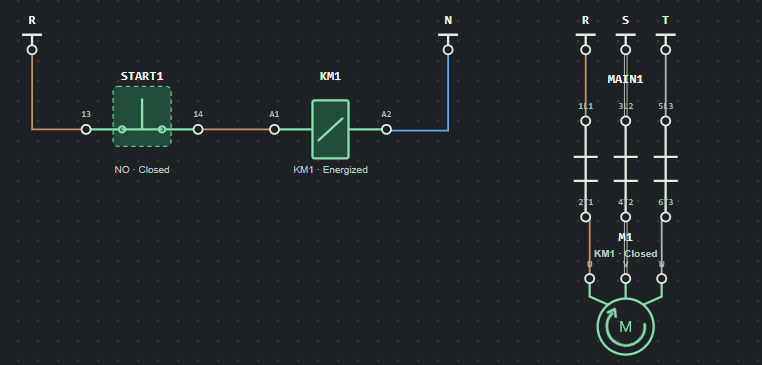
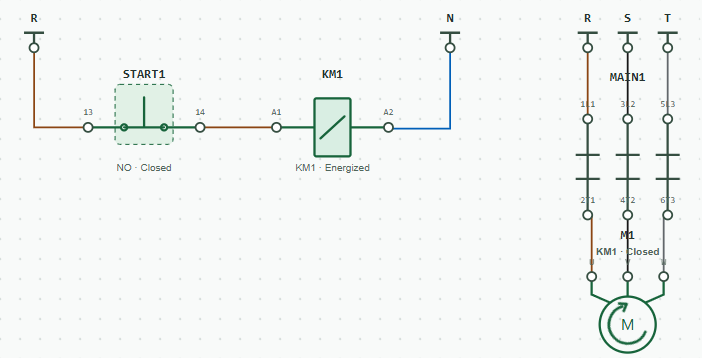
8. User Preferences
Language and theme options are among the user preferences of the workspace.
These preferences are not part of the electrical structure of the circuit file.
Therefore, when you share a circuit with another user, the connection structure of the circuit is preserved, while the interface language and theme can be displayed according to the user's own working preference.
17 Example Circuits
FC Automation Lab includes example circuits that demonstrate basic operation and common control circuits.
The examples are intended for exploration rather than memorization. Users can inspect the connections, run the simulation, and observe how the components interact.
1. Opening Example Circuits
Use Open Example on the top toolbar to access the example-circuit library.
When you select the circuit you want to examine from the list, the relevant example is loaded into the workspace.
After an example circuit is loaded, you can:
- Inspect its components
- Trace its connections
- Run the simulation
- Operate its pushbuttons and control components
- Modify the circuit
2. Example Circuits Are for Educational Purposes
The example circuits demonstrate FC Automation Lab features and common control-circuit arrangements.
You are not limited to running an example without changes.
You can:
- Change a connection
- Delete a component
- Add a different contact
- Change a time setting
- Introduce an error and observe the result
The examples can therefore be used for experimentation and troubleshooting practice.
3. Starter Examples
- Basic Contactor Motor Control
- Start-Stop Seal-in Circuit
- Motor Control with Overload Protection
- Jog Control Circuit
- Forward-Reverse Motor Control
- Forward-Reverse Control with Limit Switches
- Delayed Start with TON Timer
- Delayed Stop with TOF Timer
- Sequential Two-Motor Starting
- Automatic Star-Delta Starter
18 Common Issues
This section describes common issues and the basic checks that can help resolve them.
To remove several objects while editing, create a multi-selection with Ctrl, Shift, or Cmd, then use the visible Delete Selection command or the Delete key.
When you encounter a problem, it is better to check the connections and component states step by step rather than changing the entire circuit.
1. I Added a Component but the Circuit Does Not Operate
Possible reasons:
- The supply terminals may not be configured correctly.
- The necessary connections between terminals may not have been completed.
- The simulation may not be in RUN state.
Check:
- Whether the R, S, T, N, +24 V, or 0 V supply terminals are configured correctly
- Whether the wires are actually connected to the terminals
- Whether the simulation is running
2. The Contactor Coil Does Not Energize
Possible reasons:
- A1–A2 connections may be incomplete.
- The wrong type of START or STOP contact may have been used.
- There may be an open connection in the control circuit.
- An overload relay or fuse may be interrupting the circuit.
Check: Trace the connection path step by step from the supply terminal to the contactor coil.
3. The Contactor Operates but the Auxiliary Contact Does Not Switch
Possible cause: The auxiliary contact may not be associated with the correct contactor.
Check: Verify the device selected for the auxiliary contact in the Properties panel.
For example, an auxiliary contact that must follow KM1 should be associated with KM1.
4. The Contactor Operates but the Motor Does Not Rotate
Possible reasons:
- Power circuit connections may be missing.
- The three-pole main contact group may not be associated with the correct contactor.
- Required phases may not be reaching the motor terminals.
- An overload relay or fuse may be open.
Check: Trace the R, S, and T phase paths from the power source to the motor terminals.
5. The Motor Rotates in the Opposite Direction
The direction of a three-phase motor is determined by the sequence of phases reaching the motor terminals.
If the motor rotates in the opposite direction from that expected, check the phase sequence in the power circuit.
6. The Contactor Drops Out When I Release the START Pushbutton
This situation is normal if there is no seal-in connection in the circuit.
If the contactor must remain energized after the START pushbutton is released, create a seal-in circuit using an appropriate NO auxiliary contact.
7. The Timer Relay Does Not Work
Check:
- The A1–A2 supply connections to the timer relay
- Whether TON or TOF is selected
- The PT value
- The B1 control input when using TOF
- Whether the auxiliary contact is associated with the correct KT device
Also check that the simulation is in RUN state.
8. The Timer Relay Pauses When I Switch to Another Tab
This is not an error.
Simulation time pauses while the browser tab is not visible.
When you return to the tab, the timer relay continues from where it left off.
9. I Started Wiring but Want to Cancel
To cancel active wiring, press the Esc key on the keyboard.
When canceled, the incomplete connection is not added to the circuit.
10. Two Wires Cross; Are They Connected?
No.
The mere visual intersection of two wires does not create an electrical connection.
If an electrical connection is required, use a junction or connect the wires at a terminal.
The Wire Jumps view helps visually distinguish wires that are intersecting but not connected.
11. A Wire Appears Red
A red connection may indicate that an electrically incompatible source or potential conflict has been detected in the circuit.
Check the supply terminals and related connections.
12. Live Colors Do Not Appear as Expected
Live Colors indicate source/potential identity, not actual current flow.
Colors represent the identity of the source or potential resolved in the circuit.
Therefore, it may be normal for the two sides of a load or the two sides of an open contact to appear in different colors.
13. The Six-Terminal Motor Is Not Detected as Star or Delta
Motor:
- U1–U2,
- V1–V2,
- W1–W2
Check the connections between terminals.
Star or delta status is determined by the actual terminal connections, not by a predefined selection.
An incomplete or incorrect arrangement is not recognized as a valid star or delta connection.
14. I Tested the Overload Relay but the Contactor Did Not Drop Out
This is normal if the 95–96 NC auxiliary contact of the overload relay is not connected to the control circuit.
The overload relay does not automatically de-energize the contactor.
For the contactor to drop out, the 95–96 NC auxiliary contact must be wired into the appropriate control-circuit path.
15. I Tested the Fuse and the Circuit No Longer Operates
When the fuse is tested, the corresponding electrical path opens.
Select Reset to return the fuse to its conducting state.
16. I Cannot Reopen the Saved Circuit
Check that the file:
- Has the .vcl.json extension
- Was created by FC Automation Lab
- Is intact and has not been altered
Invalid or unsupported files may not be accepted by the application.
17. I Cannot Reopen a PNG or SVG File
PNG and SVG files are image outputs of the circuit.
Use the .vcl.json file to reopen and edit the circuit.
JSON = editable circuit file; PNG / SVG = circuit diagram image
18. How Can I Delete a Component?
Select the object you want to remove, then use Delete Selection on the top toolbar or press the Delete key.
Before deleting a linked component, it is recommended that you check the relevant wire and device associations.
19. The Circuit Still Does Not Operate as Expected
You can follow this order to find the problem:
- Check the supply terminals.
- Follow the terminal connections.
- Check NO and NC contact types.
- Check contactor and auxiliary contact relationships.
- Check the state of the overload relays and fuses.
- If a timer relay is used, check PT and control inputs.
- Trace phase paths in the power circuit.
- Examine potential IDs using Live Colors if necessary.
19 Model Limitations
FC Automation Lab simulates the connection logic and operating behavior of electrical control and power circuits for educational purposes.
The system determines component states from the terminal connections, device relationships, and circuit topology created by the user. FC Automation Lab is not electrical engineering calculation or physical-system analysis software.
1. Electrical Quantities Are Not Calculated
FC Automation Lab does not calculate the actual values of the following physical quantities:
- Current
- Voltage magnitude
- Power
- Energy
- Power factor
- Short-circuit current
- Line or conductor losses
For example, displaying a motor as running does not mean that the real-world current through the motor has been calculated.
The main purpose of the simulation is to evaluate whether the necessary electrical connection conditions for the motor to operate are met.
2. Physical Motor Behavior Is Not Modeled
Motor simulation is based on connection and control logic.
The model does not calculate:
- Motor torque
- Actual rotational speed
- Starting current
- Acceleration time
- Mechanical load
- Slip
- Motor temperature
Motor direction and connection status are derived from actual terminal and phase connections within the supported model.
3. Thermal Behavior and Protection Calculations Are Not Performed
Protection components such as overload relays and fuses are modeled through state changes for educational purposes.
The model does not calculate:
- Actual overcurrent
- The overload relay’s heating curve
- Trip time
- Fuse I²t characteristics
- Protection coordination
- Selectivity
These values are not calculated from real physical parameters.
The Test and Reset controls are used to observe how a protection state affects the circuit.
4. Live Colors Are Not Measurements
Live Colors visually distinguish the source/potential identities resolved in the circuit.
Live Colors do not show:
- Actual current flow
- Current direction
- Voltage magnitude
- Energy consumption
5. Component Behavior Is Idealized
FC Automation Lab models control components with idealized behavior for educational purposes.
The simulation does not model the following real-world device behavior:
- Contact bounce
- Mechanical wear
- Arcing
- Physical differences in coil pickup and dropout times
- Manufacturer tolerances
- Ambient temperature effects
In this way, the user can focus on the basic operating logic of the circuit before the physical details.
6. Simulation Timing
ET and PT values in timer relays are based on FC Automation Lab simulation time.
Simulation time pauses while the browser tab is not visible and resumes when the tab becomes visible again.
Therefore, simulation time should not be used to represent the continuous real-time behavior of a real industrial control system.
7. Supported Components and Circuit Scope
FC Automation Lab simulates only the supported components and defined operating behavior available in the application.
The visual representation of an unsupported device or physical behavior using existing components does not mean that the system simulates the actual behavior of that device.
8. Not a Substitute for Real-World System Design
FC Automation Lab should not be used as a substitute for professional engineering tools or expert evaluation for:
- Real control-panel design
- Wire cross-section calculations
- Protection-device selection
- Electrical installation calculations
- Machine-safety assessment
- Standards or regulatory-compliance checks
- Real-world commissioning
Within these limits, FC Automation Lab provides an interactive training environment in which users can build circuits, make mistakes, observe the results, and learn connection logic through experimentation.
20 Next Steps: Open the Lab
You have reached the end of the FC Automation Lab user guide.
This guide introduced the workspace, component placement, wiring, contactor and auxiliary-contact relationships, timer relays, motor and power circuits, Live Colors, simulation controls, and file operations.
FC Automation Lab is designed to help users build their own circuits, change connections, make mistakes, and learn control logic by observing the results instead of merely running prebuilt circuits.
You are now ready to use the workspace.
Start by exploring an example circuit or open a blank workspace and build a circuit from scratch.
Open the Lab
Open FC Automation Lab to begin building your circuit.
Explore Example Circuits
Use the Example Circuits section to explore introductory control and power circuits.
If you notice an error or usage problem, you can report it in the Contact section on the site.